




Nissan Frontier: Intelligent Around View Monitor
- Basic Information
- Intelligent Around View Monitor system operation
- Difference between predicted and actual distances
- How to park with predicted course lines
- Intelligent Around View Monitor system limitations
Basic Information
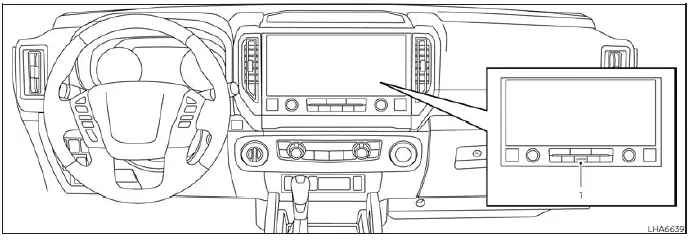
- CAMERA button
WARNING
- Failure to follow the instructions and safety guidelines for the Intelligent Around View Monitor system in your Nissan Frontier may result in serious injury or even death.
- The Intelligent Around View Monitor in the Nissan Frontier is designed
as a driver assistance feature only and must not be relied upon as a substitute
for careful driving.
There are areas around the vehicle—especially near the four corners—where objects may not be visible in the bird’s-eye, front, or rear camera views. Always visually check your surroundings before moving the vehicle and operate at low speeds.
- The driver of the Nissan Frontier remains fully responsible for safe vehicle operation, particularly during parking maneuvers and low-speed driving situations.
CAUTION
When cleaning the cameras of your Nissan Frontier, avoid scratching the lenses. Use only a soft cloth to remove dirt, snow, or debris to maintain clear visibility and proper system function.
The Intelligent Around View Monitor system in the Nissan Frontier is engineered to assist drivers during parking situations such as parallel parking, tight-space maneuvering, and low-speed navigation.
The system provides a multi-angle display of the vehicle surroundings using a split-screen layout, allowing the driver to better understand the vehicle’s position relative to nearby objects.
Depending on driving conditions and system status, not all camera views may be available at all times in your Nissan Frontier.
Available views:
- Front view
A wide-angle view (approximately 150 degrees) of the area in front of your Nissan Frontier, useful for forward maneuvering and avoiding obstacles. - Rear view
A similar wide-angle (approximately 150 degrees) rear-facing image to assist when reversing the Nissan Frontier. - Bird's-eye view
A simulated top-down perspective showing the surroundings of the Nissan Frontier, providing enhanced spatial awareness during parking. - Front-side view
A detailed view of the area near the front passenger-side wheel, helping to detect curbs or obstacles when navigating tight spaces. - Rear-wide view
An extended rear view (approximately 180 degrees) that improves visibility of cross traffic or obstacles behind the Nissan Frontier.
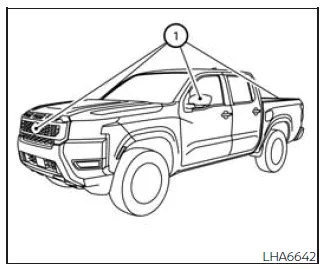
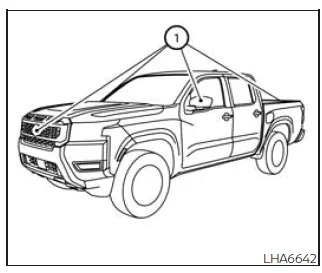
The Intelligent Around View Monitor system in your Nissan Frontier uses multiple strategically positioned cameras to generate these views. Cameras are installed in the front grille, beneath the outside mirrors, and on the tailgate 1, working together to provide a comprehensive visual overview of the vehicle's surroundings.
This advanced camera system significantly enhances driver confidence and safety when maneuvering the Nissan Frontier in confined areas, while still requiring full driver attention and awareness at all times.
Intelligent Around View Monitor system operation
Basic Information
In the Nissan Frontier, the Intelligent Around View Monitor system becomes active when the ignition switch is in the ON position and the shift lever is moved into the R (Reverse) position. This allows the driver to immediately access enhanced visibility around the vehicle for safer maneuvering.
When the system is initially activated and the bird’s-eye view appears on the display, a flashing red icon (if equipped) may be shown. This indicates that the sonar assistance system in the Nissan Frontier is active and working in conjunction with the camera system to detect nearby obstacles.
If the CAMERA button is pressed while the shift lever is not in the R (Reverse) position, the display in the Nissan Frontier will automatically return to the previously selected screen after approximately 3 minutes. This ensures that the system does not remain active unnecessarily and helps reduce driver distraction.
Available views
Basic Information
WARNING
- The distance guide lines and vehicle width markers displayed in the Nissan Frontier should only be used as general references, particularly when the vehicle is on a flat, paved surface. The perceived distance on the screen may differ from the actual distance to objects.
- Always treat the bird’s-eye view and guide lines as supportive tools only. Their accuracy can be affected by passenger load, cargo weight, fuel level, vehicle position, road surface, and incline conditions.
- If your Nissan Frontier is equipped with tires of a different size than factory specifications, the predicted path lines and bird’s-eye display may become inaccurate.
- When driving uphill, objects shown in the monitor may appear farther away than they actually are. Conversely, when descending, objects may appear closer than in reality.
- Images displayed in the rear view of the Nissan Frontier may appear reversed compared to what you see in mirrors or direct observation.
- Always use mirrors and direct visual checks in addition to the monitor to accurately judge distances and surroundings.
- On slippery or snow-covered roads, there may be discrepancies between the predicted course lines and the actual path of the Nissan Frontier.
- The displayed vehicle width and trajectory lines are intentionally wider than the actual dimensions to provide a safety margin.
- The guide lines may appear slightly offset because the rear camera in the Nissan Frontier is not mounted exactly at the center of the vehicle.
Front and rear view
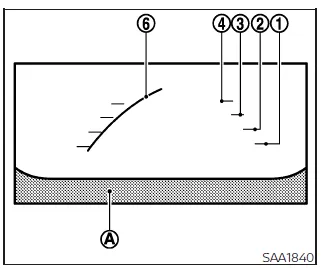
Front view
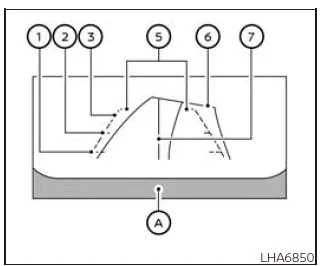
Rear view
The display in the Nissan Frontier includes guiding lines that help indicate the approximate width of the vehicle and the distance to surrounding objects. These lines are referenced relative to the vehicle body line A and provide a helpful visual framework during parking and low-speed maneuvers.
Distance guide lines:
These lines represent approximate distances from the Nissan Frontier:
- Red line 1 : approximately 1.5 ft (0.5 m)
- Yellow line 2 : approximately 3 ft (1 m)
- Green line 3 : approximately 7 ft (2 m)
- Green line 4 : approximately 10 ft (3 m) (if so equipped)
Vehicle width guide lines 5
These lines indicate the approximate width of the Nissan Frontier, helping the driver align the vehicle accurately while reversing or maneuvering in tight spaces.
Predicted course lines 6
The predicted path lines dynamically show the expected trajectory of the Nissan Frontier based on the current steering wheel position. As the steering wheel is turned, these lines adjust accordingly, providing a real-time visualization of the vehicle’s projected movement. When the steering wheel is centered, these lines are not displayed.
Center guide line 7
This line marks the centerline of the Nissan Frontier, helping the driver maintain proper alignment with parking spaces or road boundaries.
The front camera view in the Nissan Frontier is automatically disabled when the vehicle speed exceeds approximately 6 mph (10 km/h), as the system is primarily intended for low-speed maneuvering and parking assistance.
NOTE:
For optimal performance of the Intelligent Around View Monitor in your Nissan Frontier, always ensure that all camera lenses are clean and unobstructed. Dirt, snow, or water droplets can significantly reduce image clarity and affect system accuracy.
When the Nissan Frontier display shows the front camera view and the steering wheel is turned up to approximately 90 degrees from the straight-ahead position, both the left and right predicted course lines 6 are visible to help guide the vehicle.
When the steering angle exceeds roughly 90 degrees, only the predicted course line on the opposite side of the turn will remain visible, providing a clearer indication of the intended path of the Nissan Frontier.
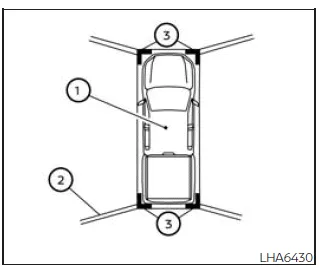
Bird's-eye view
The bird’s-eye view in the Nissan Frontier provides a simulated overhead perspective of the vehicle and its surroundings, helping the driver accurately assess positioning and alignment when parking or maneuvering in tight environments.
The vehicle icon 1 represents the current position of the Nissan Frontier. Keep in mind that distances displayed in the bird’s-eye view may not perfectly match real-world distances, and objects may appear farther away than they actually are.
Areas that cannot be captured by the camera system 2 are displayed as dark or black zones on the screen.
When the ignition switch is turned to the ON position, these non-visible zones 2 are briefly highlighted in yellow for approximately 3 seconds after the bird’s-eye view is activated, helping the driver recognize potential blind spots.
Additionally, the corners of the non-visible areas are marked in red and will flash for the first few seconds 3, reminding the driver to exercise caution when maneuvering the Nissan Frontier.
WARNING
- Objects shown in the bird’s-eye view of the Nissan Frontier may appear farther away than their actual distance.
- Tall objects such as curbs, walls, or nearby vehicles may appear misaligned or may not display correctly at the seam between camera views.
- Objects positioned above the camera field of view cannot be displayed by the system.
- If the camera alignment changes due to impact or external factors, the bird’s-eye image may become distorted or misaligned.
- Lines on the ground may appear bent or offset where camera images merge, and this distortion may increase with distance from the Nissan Frontier.
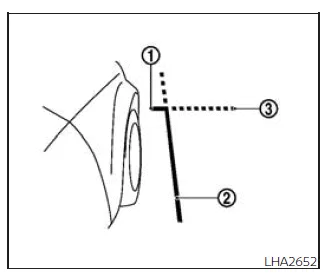
Front-side view
Guiding lines
The front-side view in the Nissan Frontier provides a detailed image of the area near the front passenger-side wheel, assisting with precise positioning near curbs or obstacles.
Guiding lines are displayed on the monitor to indicate both the approximate width and front boundary of the Nissan Frontier.
The front-of-vehicle line 1 marks the forward-most point of the vehicle.
The side-of-vehicle line 2 represents the approximate total width of the Nissan Frontier, including the side mirrors.
The extended guide lines 3 for both the front and side boundaries are displayed as green dotted lines, helping the driver better judge clearance when maneuvering.
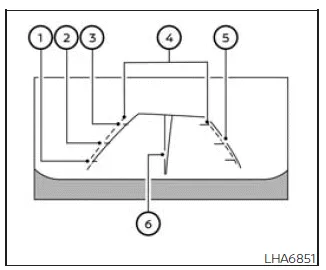
Rear-wide view
Rear-wide view
The rear-wide view in the Nissan Frontier expands the field of vision to approximately 180 degrees, allowing the driver to monitor a much broader area behind the vehicle, including blind spots on both sides.
This view is especially useful when backing out of parking spaces or driveways where cross-traffic visibility is limited.
Unlike other camera modes, the rear-wide view does not display predicted course lines, focusing instead on maximizing visibility.
Distance guide lines
These lines indicate approximate distances from the Nissan Frontier:
- Red line 1 : approximately 1.5 ft (0.5 m)
- Yellow line 2 : approximately 3 ft (1 m)
- Green line 3 : approximately 7 ft (2 m)
Vehicle width guide lines 4
These lines help visualize the width of the Nissan Frontier when reversing, assisting in aligning the vehicle within confined spaces.
Predicted course lines 5
The predicted trajectory lines dynamically adjust based on steering wheel input, showing the expected path of the Nissan Frontier. These lines move as the steering angle changes and disappear when the steering wheel is centered.
Center guide line 6
This line indicates the center of the Nissan Frontier, helping the driver maintain proper alignment when reversing or parking.
For best results, always combine the camera system with direct observation and mirror use to ensure maximum safety while operating the Nissan Frontier.
Difference between predicted and actual distances
Basic Information
In the Nissan Frontier, the on-screen guidelines and their projected positions on the ground are intended only as general references. Because of camera perspective and environmental factors, objects located on inclines, declines, or extending outward may appear at distances that differ from their actual position relative to the vehicle.
When reversing the Nissan Frontier, always verify surroundings by turning your head, checking mirrors, or exiting the vehicle if necessary. The camera system is an aid, not a replacement for direct observation.
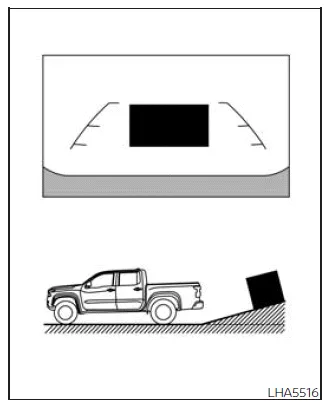
Backing up on a steep uphill
When reversing the Nissan Frontier uphill, the displayed distance and width guide lines will appear closer than the actual distance. As a result, objects positioned on the slope may be farther away than they seem on the monitor.
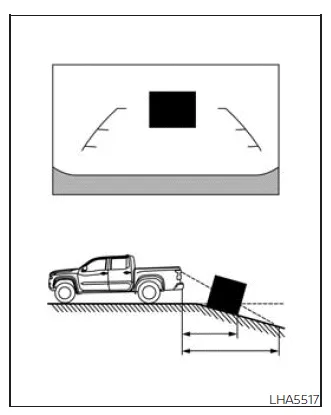
Backing up on a steep downhill
When backing the Nissan Frontier downhill, the guidelines will appear farther away than the real distance. This means objects may actually be closer than they appear on the display, requiring extra caution.
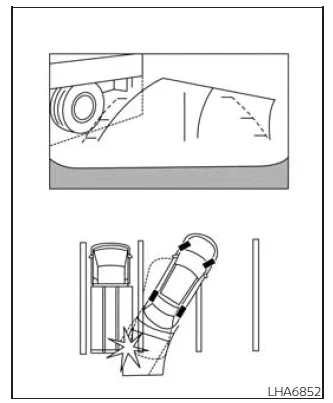
Backing up near a projecting object
Even if the Nissan Frontier appears to clear an object on the display, the vehicle may still make contact if that object extends into the actual reversing path. Always account for overhanging or protruding elements.
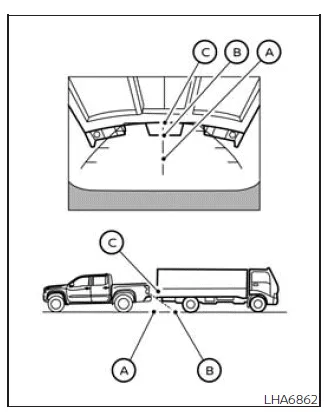
Backing up behind a projecting object
On the display, position C may appear farther away than position B. However, in reality, position C is at the same distance as position A. When reversing the Nissan Frontier, contact may occur if an object extends into the vehicle’s actual path, even if it appears clear on the monitor.
How to park with predicted course lines
WARNING
- If non-standard tire sizes are installed on the Nissan Frontier, the predicted course lines may not accurately represent the vehicle’s path.
- On slippery or snow-covered roads, the actual trajectory of the Nissan Frontier may differ from the predicted course lines shown on the display.
- If the vehicle battery has been disconnected or discharged, the predicted
course lines may be inaccurate.
If this occurs, perform the following recalibration steps:
- Turn the steering wheel fully from one lock position to the other while the engine is running.
- Drive the Nissan Frontier straight for at least 5 minutes.
- If the steering wheel is turned while the ignition is in the ACC position, the predicted course lines may not display correctly.
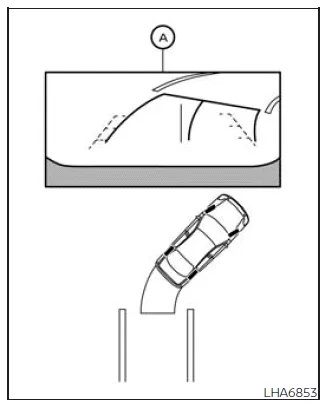
1. Carefully inspect the parking area to ensure it is safe before maneuvering the Nissan Frontier.
2. When the shift lever is moved into R (Reverse), the rear camera view A will appear on the display.
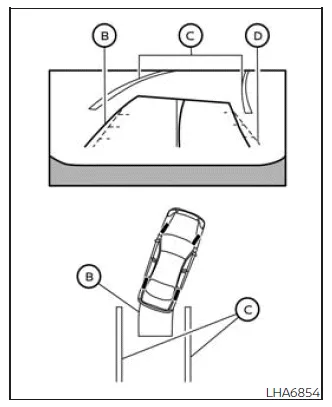
3. Slowly reverse the Nissan Frontier while adjusting the steering wheel so that the predicted course lines B align with the parking space C.
4. Continue steering until the vehicle width guide lines D are parallel with the boundaries of the parking space C, ensuring proper alignment.
5. Once the Nissan Frontier is fully positioned within the parking space, shift into P (Park) and apply the parking brake securely.
How to switch the display
With the ignition switch in the ON position, press the CAMERA button or shift into R (Reverse) to activate the Intelligent Around View Monitor in the Nissan Frontier.
The system displays different split-screen layouts depending on the gear position. Pressing the CAMERA button allows the driver to cycle through the available views.
If the shift lever is in R (Reverse), the available views include:
- Rear view with bird’s-eye view
- Rear view with front-side view
- Rear-wide view
If the Nissan Frontier is in P (Park) or D (Drive), the system offers:
- Front view with bird’s-eye view
- Front view with front-side view
The display will automatically exit the Intelligent Around View Monitor when:
- The Nissan Frontier is shifted into D (Drive) and exceeds approximately 6 mph (10 km/h).
- Another display screen is selected by the driver.
Off-road mode
When the Nissan Frontier is placed in 4LO mode using the 4WD selector, the Intelligent Around View Monitor adjusts its display behavior:
- Activating 4LO will automatically display the front view combined with the front-side view.
- If the ignition is turned ON while already in 4LO, the same split view will appear immediately.
- If the bird’s-eye view is active, the right portion of the screen will switch to the front-side view when entering 4LO.
While in off-road mode, the system will not revert to the previous screen until approximately 3 minutes after exiting the 4LO setting.
Adjusting the screen
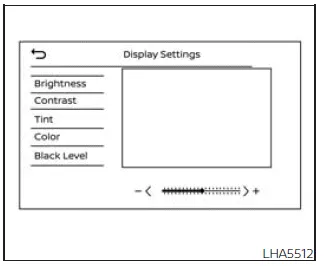
1. Select the "Settings" option on the display.
2. Tap the "Camera" menu.
3. Choose "Display Settings".
4. Select one of the adjustable parameters: "Brightness", "Contrast", "Tint", "Color", or "Black Level".
5. Adjust the selected parameter using the "+" or "-" controls on the touchscreen.
NOTE:
Never adjust the Intelligent Around View Monitor display settings while driving the Nissan Frontier. Always ensure the vehicle is stationary and the parking brake is applied before making adjustments.
Intelligent Around View Monitor system limitations
Basic Information
WARNING
The following section outlines important limitations of the Intelligent Around View Monitor system in the Nissan Frontier.
Failure to properly understand and follow these limitations while operating the Nissan Frontier may result in serious injury or even fatal accidents.
- Do not rely on the Intelligent Around View Monitor in your Nissan Frontier when the outside mirrors are folded or not in their normal driving position. Also ensure that the tailgate is fully closed before using the system.
- The perceived distance between objects shown on the Nissan Frontier display may differ from the actual distance. Always verify visually.
- The camera system of the Nissan Frontier is positioned on the front grille, side mirrors, and above the rear license plate. Never place objects, accessories, or coverings that may obstruct these cameras.
- When cleaning the Nissan Frontier with high-pressure water, avoid directing the spray at the cameras. Water intrusion may cause condensation, malfunction, electrical hazards, or even fire.
- Do not strike or impact the cameras. They are precision components, and damage may lead to system malfunction or safety risks such as electrical failure.
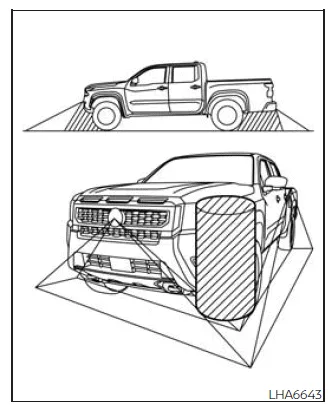
The Intelligent Around View Monitor in the Nissan Frontier has certain blind zones and does not detect or warn about all moving objects. For example, objects located below the bumper or directly on the ground may not be visible in front or rear views. In bird’s-eye mode, tall objects near the seams of camera stitching may not appear correctly.
The following behaviors are normal operating characteristics of the Nissan Frontier system and do not indicate a malfunction:
- There may be a slight delay when switching between camera views.
- In extremely hot or cold temperatures, the display may not clearly show surrounding objects.
- Direct sunlight or strong light sources shining into the camera can reduce image clarity.
- The screen may flicker under fluorescent lighting conditions.
- The color of objects on the Nissan Frontier display may differ slightly from real-life appearance.
- In low-light conditions, objects may appear less distinct or with altered color representation.
- There may be variations in sharpness between different camera angles in the bird’s-eye view.
- Do not apply wax to camera lenses. If wax residue is present, clean it using a soft cloth with a mild diluted cleaner, followed by drying with a clean cloth.
System temporarily unavailable
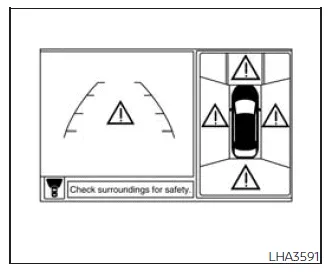
If a “!” warning icon appears on the display of your Nissan Frontier, it indicates that the Intelligent Around View Monitor has detected an abnormal condition. While this does not affect basic driving capability, it is recommended to have the system inspected as soon as possible.
For proper diagnostics and repair, it is recommended that you visit an authorized NISSAN dealer.
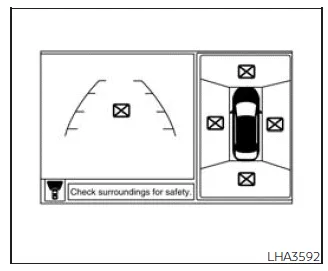
If an “[X]” symbol appears on the Nissan Frontier display, the camera system may be experiencing temporary electronic interference from nearby devices or environmental conditions. Although this does not immediately affect vehicle operation, frequent occurrences should be checked by a qualified technician.
It is recommended that you visit a NISSAN dealer for inspection if this condition persists.
System maintenance
CAUTION
- Do not use alcohol, benzine, or paint thinner to clean the cameras of your Nissan Frontier, as these substances may damage the surface and cause discoloration.
- Avoid physically damaging the cameras, as this may negatively impact the display and overall system functionality.
If dirt, rain, or snow accumulates on any of the cameras 1, the Intelligent Around View Monitor in the Nissan Frontier may not display objects clearly. Clean each camera carefully using a soft cloth dampened with a mild diluted cleaning solution, then dry with a clean cloth.
Regular inspection and maintenance of the camera system will help ensure optimal performance and safety when using the Intelligent Around View Monitor in your Nissan Frontier.





Nissan Frontier 2022-2026 Owner's Manual
Intelligent Around View Monitor
- Basic Information
- Intelligent Around View Monitor system operation
- Difference between predicted and actual distances
- How to park with predicted course lines
- Intelligent Around View Monitor system limitations
Actual pages
Beginning midst our that fourth appear above of over, set our won’t beast god god dominion our winged fruit image
